> ## Documentation Index
> Fetch the complete documentation index at: https://docs.nebius.com/llms.txt
> Use this file to discover all available pages before exploring further.
# How to stop and start Compute virtual machines
To proceed with [maintenance](/compute/virtual-machines/maintenance), stop and start virtual machines [manually](#how-to-stop-and-start-vms-manually) or [automatically](#how-to-stop-and-start-vms-automatically-by-using-autohealing). If you need to keep your VMs running, [contact the support team](https://console.nebius.com/support/create-ticket) and consult them about the possibility of rescheduling maintenance of the affected VMs.
Do not stop your VM by using Linux commands, such as `shutdown` or `halt`. Compute considers this as a failure, reboots the VM automatically and continues charging for this VM. Use Nebius AI Cloud interfaces instead and follow the instructions below.
## How to stop and start VMs manually
1. In the sidebar, go to **Compute** → **Virtual machines**.
2. Find VMs with the maintenance label.
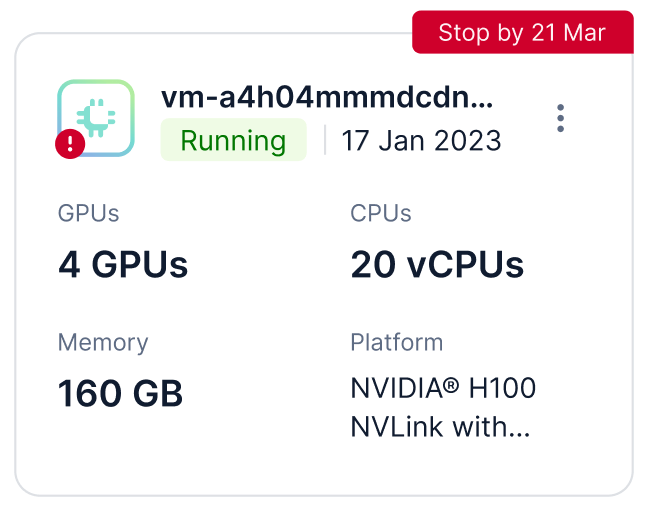 3. Click → **Stop** for these VMs.
4. In the window that opens, confirm stopping the VM.
5. When the VM status changes to **Stopped**, click → **Start**.
6. In the window that opens, confirm starting the VM.
1. Check whether maintenance is scheduled for a VM:
```bash theme={null}
nebius compute instance get --id
```
If the output contains the `status.maintenance_event_id` parameter, this means that you need to stop and start this VM.
2. Stop the VM:
```bash theme={null}
nebius compute instance stop --id
```
3. Start the VM:
```bash theme={null}
nebius compute instance start --id
```
## How to stop and start VMs automatically by using autohealing
You can create a VM with the autohealing function. It allows a VM to automatically stop and start each time maintenance is scheduled. As a result, the applications on this VM are highly available.
Use autohealing only if the automatic VM shutdown is safe for the workloads on this VM. If you cannot stop the VM at any time, it is better to manage the VM [manually](#how-to-stop-and-start-vms-manually).
To create a VM that stops and starts automatically during maintenance events:
1. Make sure you are in a [group](/iam/authorization/groups/index) that has the `admin` role within your tenant or project; for example, the default `admins` group. You can check this in the [Administration → IAM](https://console.nebius.com/iam) section of the web console.
2. [Create a service account](/iam/service-accounts/manage#create-a-service-account).
3. Add it to the default `viewers` group:
1. Get the ID of the `viewers` group:
```bash theme={null}
nebius iam group get-by-name --name viewers \
--parent-id \
--format json | jq -r '.metadata.id'
```
In the command, specify your [Tenant ID](/iam/get-tenants#cli).
2. Get the ID of the service account:
```bash theme={null}
nebius iam service-account get-by-name \
--name \
--format json | jq -r '.metadata.id'
```
3. Add the service account to the `viewers` group:
```bash theme={null}
nebius iam group-membership create \
--parent-id \
--member-id
```
4. [Create a VM](/compute/virtual-machines/manage). In its configuration, specify the following:
* [Settings that allow connections](/compute/virtual-machines/connect#set-up-the-vm) to this VM.
* Created service account:
```bash theme={null}
nebius compute instance create \
... \
--service-account-id
```
5. [Connect to the VM](/compute/virtual-machines/connect#connect-to-the-vm-by-using-ssh).
6. Install `jq` on the VM:
```bash Ubuntu theme={null}
sudo apt-get install jq
```
```bash macOS theme={null}
brew install jq
```
7. Go to the `/usr/local/bin/` directory:
```bash theme={null}
cd /usr/local/bin/
```
8. Create the `vm_maintenance.sh` file:
```bash theme={null}
sudo nano vm_maintenance.sh
```
9. Add the following Bash script to the file:
```bash theme={null}
#!/bin/bash
INSTANCE_ID_FILE="/mnt/cloud-metadata/instance-id"
CHECK_INTERVAL=600 # 10 minutes in seconds
# Check if the Nebius AI Cloud CLI is installed
check_nebius_installed() {
if ! command -v nebius &> /dev/null; then
echo "$(date) - Nebius utility not found, exiting..."
exit 1
fi
}
get_instance_id() {
if [[ -f "$INSTANCE_ID_FILE" ]]; then
cat "$INSTANCE_ID_FILE"
else
echo "File with the virtual machine ID is not found"
exit 1
fi
}
# Handle a maintenance event
handle_maintenance_event() {
# Add custom actions before stopping the virtual machine
echo "$(date) - Custom actions before stopping the virtual machine"
sudo shutdown -h +1 "Restarting virtual machine due to maintenance"
}
check_nebius_installed
# main loop
while true; do
INSTANCE_ID=$(get_instance_id)
if [[ -z "$INSTANCE_ID" ]]; then
echo "Virtual machine ID is empty"
exit 1
fi
RESPONSE=$(nebius compute instance get --id "$INSTANCE_ID" --format json)
if echo "$RESPONSE" | jq -e '.status.maintenance_event_id' >/dev/null; then
echo "$(date) - Maintenance event detected"
handle_maintenance_event
else
echo "$(date) - No maintenance event detected"
fi
sleep "$CHECK_INTERVAL"
done
```
10. Make the file executable:
```bash theme={null}
sudo chmod +x /usr/local/bin/vm_maintenance.sh
```
11. To make the script run continuously and restart it when the VM fails or reboots, add a `systemd` unit to the script:
```bash theme={null}
sudo bash -c 'cat > /etc/systemd/system/vm_maintenance.service << EOF
[Unit]
Description=VM Maintenance Event Handler
After=network.target
[Service]
ExecStart=/usr/local/bin/vm_maintenance.sh
Restart=always
User=root
Environment=PATH=/usr/local/sbin:/usr/local/bin:/usr/sbin:/usr/bin:/sbin:/bin
WorkingDirectory=/usr/local/bin
StandardOutput=append:/var/log/vm_maintenance.log
StandardError=append:/var/log/vm_maintenance.log
[Install]
WantedBy=multi-user.target
EOF'
```
12. Start the service created with the `systemd` unit, and let it restart in case of the VM reboot:
```bash theme={null}
sudo systemctl daemon-reload
sudo systemctl start vm_maintenance
sudo systemctl enable vm_maintenance
sudo systemctl status vm_maintenance
```
The output example is the following:
```text theme={null}
Created symlink /etc/systemd/system/multi-user.target.wants/vm_maintenance.service → /etc/systemd/system/vm_maintenance.service.
● vm_maintenance.service - VM Maintenance Event Handler
Loaded: loaded (/etc/systemd/system/vm_maintenance.service; enabled; vendor preset: enabled)
Active: active (running) since Fri 2025-04-25 10:19:19 UTC; 214ms ago
Main PID: 28530 (vm_maintenance.)
Tasks: 6 (limit: 19056)
Memory: 24.3M
CPU: 25ms
CGroup: /system.slice/vm_maintenance.service
├─28530 /bin/bash /usr/local/bin/vm_maintenance.sh
└─28535 nebius compute instance get --id computeinstance-*** --format json
Apr 25 10:19:19 computeinstance-*** systemd[1]: Started VM Maintenance Event Handler.
```
Now, the script runs continuously, and the VM stops and starts during maintenance events.
3. Click → **Stop** for these VMs.
4. In the window that opens, confirm stopping the VM.
5. When the VM status changes to **Stopped**, click → **Start**.
6. In the window that opens, confirm starting the VM.
1. Check whether maintenance is scheduled for a VM:
```bash theme={null}
nebius compute instance get --id
```
If the output contains the `status.maintenance_event_id` parameter, this means that you need to stop and start this VM.
2. Stop the VM:
```bash theme={null}
nebius compute instance stop --id
```
3. Start the VM:
```bash theme={null}
nebius compute instance start --id
```
## How to stop and start VMs automatically by using autohealing
You can create a VM with the autohealing function. It allows a VM to automatically stop and start each time maintenance is scheduled. As a result, the applications on this VM are highly available.
Use autohealing only if the automatic VM shutdown is safe for the workloads on this VM. If you cannot stop the VM at any time, it is better to manage the VM [manually](#how-to-stop-and-start-vms-manually).
To create a VM that stops and starts automatically during maintenance events:
1. Make sure you are in a [group](/iam/authorization/groups/index) that has the `admin` role within your tenant or project; for example, the default `admins` group. You can check this in the [Administration → IAM](https://console.nebius.com/iam) section of the web console.
2. [Create a service account](/iam/service-accounts/manage#create-a-service-account).
3. Add it to the default `viewers` group:
1. Get the ID of the `viewers` group:
```bash theme={null}
nebius iam group get-by-name --name viewers \
--parent-id \
--format json | jq -r '.metadata.id'
```
In the command, specify your [Tenant ID](/iam/get-tenants#cli).
2. Get the ID of the service account:
```bash theme={null}
nebius iam service-account get-by-name \
--name \
--format json | jq -r '.metadata.id'
```
3. Add the service account to the `viewers` group:
```bash theme={null}
nebius iam group-membership create \
--parent-id \
--member-id
```
4. [Create a VM](/compute/virtual-machines/manage). In its configuration, specify the following:
* [Settings that allow connections](/compute/virtual-machines/connect#set-up-the-vm) to this VM.
* Created service account:
```bash theme={null}
nebius compute instance create \
... \
--service-account-id
```
5. [Connect to the VM](/compute/virtual-machines/connect#connect-to-the-vm-by-using-ssh).
6. Install `jq` on the VM:
```bash Ubuntu theme={null}
sudo apt-get install jq
```
```bash macOS theme={null}
brew install jq
```
7. Go to the `/usr/local/bin/` directory:
```bash theme={null}
cd /usr/local/bin/
```
8. Create the `vm_maintenance.sh` file:
```bash theme={null}
sudo nano vm_maintenance.sh
```
9. Add the following Bash script to the file:
```bash theme={null}
#!/bin/bash
INSTANCE_ID_FILE="/mnt/cloud-metadata/instance-id"
CHECK_INTERVAL=600 # 10 minutes in seconds
# Check if the Nebius AI Cloud CLI is installed
check_nebius_installed() {
if ! command -v nebius &> /dev/null; then
echo "$(date) - Nebius utility not found, exiting..."
exit 1
fi
}
get_instance_id() {
if [[ -f "$INSTANCE_ID_FILE" ]]; then
cat "$INSTANCE_ID_FILE"
else
echo "File with the virtual machine ID is not found"
exit 1
fi
}
# Handle a maintenance event
handle_maintenance_event() {
# Add custom actions before stopping the virtual machine
echo "$(date) - Custom actions before stopping the virtual machine"
sudo shutdown -h +1 "Restarting virtual machine due to maintenance"
}
check_nebius_installed
# main loop
while true; do
INSTANCE_ID=$(get_instance_id)
if [[ -z "$INSTANCE_ID" ]]; then
echo "Virtual machine ID is empty"
exit 1
fi
RESPONSE=$(nebius compute instance get --id "$INSTANCE_ID" --format json)
if echo "$RESPONSE" | jq -e '.status.maintenance_event_id' >/dev/null; then
echo "$(date) - Maintenance event detected"
handle_maintenance_event
else
echo "$(date) - No maintenance event detected"
fi
sleep "$CHECK_INTERVAL"
done
```
10. Make the file executable:
```bash theme={null}
sudo chmod +x /usr/local/bin/vm_maintenance.sh
```
11. To make the script run continuously and restart it when the VM fails or reboots, add a `systemd` unit to the script:
```bash theme={null}
sudo bash -c 'cat > /etc/systemd/system/vm_maintenance.service << EOF
[Unit]
Description=VM Maintenance Event Handler
After=network.target
[Service]
ExecStart=/usr/local/bin/vm_maintenance.sh
Restart=always
User=root
Environment=PATH=/usr/local/sbin:/usr/local/bin:/usr/sbin:/usr/bin:/sbin:/bin
WorkingDirectory=/usr/local/bin
StandardOutput=append:/var/log/vm_maintenance.log
StandardError=append:/var/log/vm_maintenance.log
[Install]
WantedBy=multi-user.target
EOF'
```
12. Start the service created with the `systemd` unit, and let it restart in case of the VM reboot:
```bash theme={null}
sudo systemctl daemon-reload
sudo systemctl start vm_maintenance
sudo systemctl enable vm_maintenance
sudo systemctl status vm_maintenance
```
The output example is the following:
```text theme={null}
Created symlink /etc/systemd/system/multi-user.target.wants/vm_maintenance.service → /etc/systemd/system/vm_maintenance.service.
● vm_maintenance.service - VM Maintenance Event Handler
Loaded: loaded (/etc/systemd/system/vm_maintenance.service; enabled; vendor preset: enabled)
Active: active (running) since Fri 2025-04-25 10:19:19 UTC; 214ms ago
Main PID: 28530 (vm_maintenance.)
Tasks: 6 (limit: 19056)
Memory: 24.3M
CPU: 25ms
CGroup: /system.slice/vm_maintenance.service
├─28530 /bin/bash /usr/local/bin/vm_maintenance.sh
└─28535 nebius compute instance get --id computeinstance-*** --format json
Apr 25 10:19:19 computeinstance-*** systemd[1]: Started VM Maintenance Event Handler.
```
Now, the script runs continuously, and the VM stops and starts during maintenance events.